
Calibre + FanFicFare Optimization Guide
Greetings folks! You may have read this information in it’s previous iteration as a Google Doc, but it’s finally living on a real webpage! That document is now deprecated and will not be updated going forward – this is the guide to watch if there are updates regarding how Calibre and FanFicFare interact. I’ve also added some things and re-written some portions for clarity as I’ve transferred the information from the old document, so even if you’ve read this before it may be worth another look. So, without further ado, the instructions!
Ok! So you’ve realized that downloading copies of the fics you love is smart, but you’ve also realized that if you just download directly from Ao3, you end up with a folder full of fics that are really hard to sort or filter through and with the workskins stripped from the file. That’s where Calibre and FanFicFare come in!
I’m not going to walk you through setting up Calibre in this guide – I might make a guide to that later, but for now there are plenty of other guides available on the internet for basic Calibre setup. The stuff in this document is basically going to be a collection of tweaks and techniques that specifically apply to working with FanFicFare that I either figured out through trial and error or that I found buried in a forum post and adapted to suit my needs, and I’m collating it here because, while I had time to spend quite a few hours digging around for information and trying things out until they worked how I wanted them to, not everybody does and also not everybody has the background to understand what the heck some of the existing help threads are implying (that includes me – I do not know python, and I especially don’t know how Calibre’s weird pseudo-python language works, so a lot of this was very annoying to figure out).
This guide is mostly going to be focused on specifically setting up FanFicFare to work nicely with Ao3, but there are a few tweaks I’ve done for other websites and I’ll lay them out at the relevant times in the tutorial. However, you will notice that occasionally I will refer to fics as books – this isn’t about Wattpad v. Ao3 terminology, it’s because I use Calibre for many different stories, not just fics, and sometimes books is a better catch-all term than fics.
Plugins To Install
Ok, so you’ve gotten Calibre set up! Make sure you’ve installed the following plugins:
- FanFicFare
- CountPages
- EpubMerge
- EpubSplit
The last three are basically useful utilities that play nicely with FanFicFare, and if you want to be able to do things like get accurate word counts, make anthologies, or split up anthologies later, you’ll want those plugins. Also, some of the stuff you’ll be doing later assumes that those plugins are installed, so if you skip installing them then this guide may not work correctly.
Setting Up Your Custom Columns
Calibre was originally designed for regular books, so the default columns don’t all cover the kinds of information fanfic consumers like to filter by. Now, technically, you don’t have to set up custom columns at all to use FanFicFare, but that means that when you download stories FanFicFare will dump all the tags into your Calibre tags column, in alphabetical order. This will quickly result in a tag browser that is more or less totally useless, because you’ll have tags like “but not between the main pairing” and “in a way” and “FOX DESERVES BETTER” and all those contextless, conversational, only used once tags cluttering things and you’ll have trouble finding the tags you might actually want to sort by, like pairing or character.
Plus, it can make your e-reader freeze or crash if you have an e-reader that will let you search by tags. I had about 5,600 fics in my library that I’d organized this way before I fixed it and I had more than 40,000 tags – trust me, it’s a mess and it’s way easier to fix this ahead of time. Also, if you don’t make custom columns, then most of what I have to tell you about won’t work so you’ll be getting a lot less use out of this guide than is ideal.
To make a custom column:
- Open your Calibre preferences menu
- Click on Add your own columns, which should be on the top row of options
- Click the button with a green plus sign that says Add custom column
- Create the columns I’ve created below – remember to choose the right type of column when you create it, because you can’t change that after a column is created and will need to delete and redo it
- The column header is whatever you want to title the column from your perspective and the lookup name is going to be what you use to automatically add information or do other automatic processes with your columns, so make sure you’re putting the right information into both of those boxes
Below is a screenshot of the custom columns I have set up.
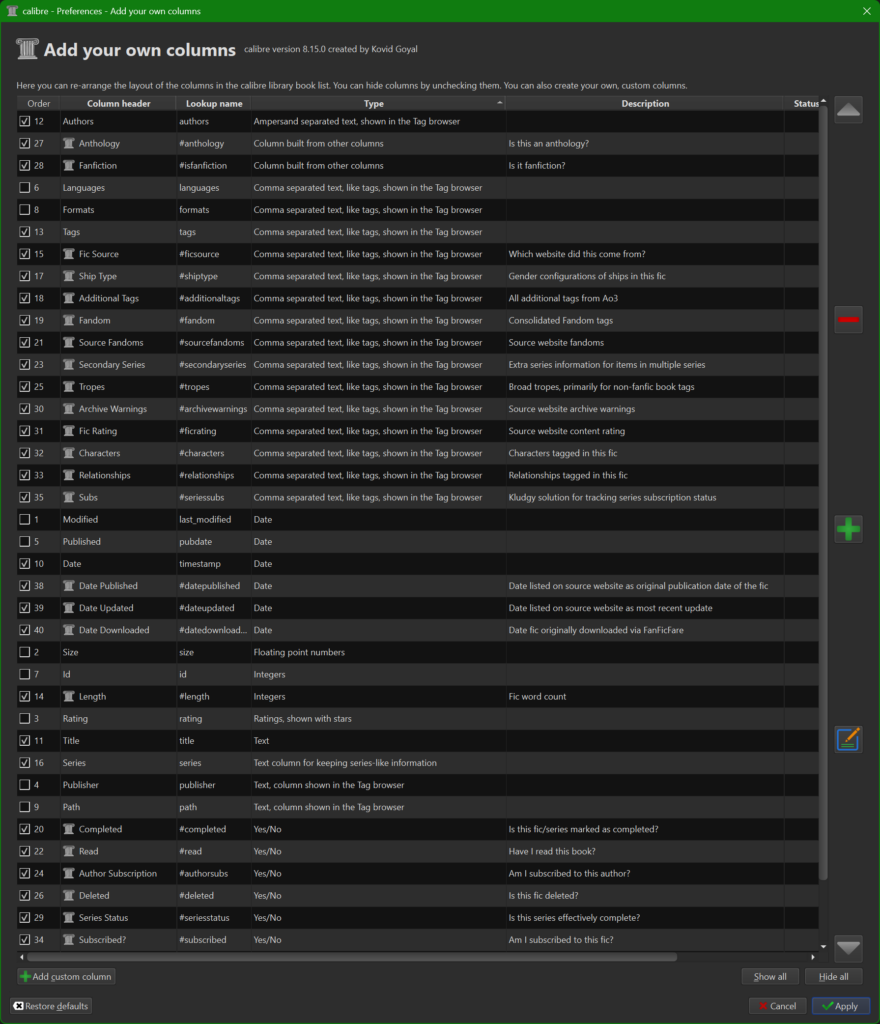
You don’t have to use all these columns, or use the names I used for them, just remember what you do choose to use and apply that to the rest of this tutorial accordingly. Most of the columns I have use effectively the same thing for column header and lookup name, but in the below list I’ll have the lookup names in parentheses next to the header name so if you’re planning on copy/pasting things from me later on your names will match my names.
- Yes/No Columns – In Calibre, this creates a column that will either be blank, show a checkmark, or show an X, depending on the input to the column. These are not automatic columns by themselves, but you can use FanFicFare to automatically update some of them, and others you can use Action Chains to automatically update. Action Chains are outside the scope of this tutorial, but I’ll include a link in the resources section at the bottom to where you can get more information about those.
- Completed (#completed)
- Read (#read)
- Author Subscription (#authorsubs)
- Deleted (#deleted)
- Series Status (#seriesstatus)
- Subscribed? (#subscribed)
- Integers – The only integer column I use is for length. This column will be mapped to a FanFicFare function to automatically record the word count of fics on download, and can also be used to manually update word count via the CountPages plugin if necessary.
- Length (#length)
- Dates – The default date column in Calibre will always hold the date you last ran FanFicFare on a specific fic, either when you originally downloaded it or when you checked for updates. This is useful, but it’s also useful to have recorded when a fic was published, updated, or originally downloaded by you and that’s what these columns are for.
- Date Published (#datepublished)
- Date Updated (#dateupdated)
- Date Downloaded (#datedownloaded)
- Comma separated text, like tags, shown in the Tag browser – These columns are all the same type and will mostly be filled in automatically by FanFicFare when you download a fic. We’ll get more into the specifics of what goes into each column later on.
- Fic Source (#ficsource)
- Ship Type (#shiptype)
- Additional Tags (#additionaltags)
- Fandom (#fandom)
- Source Fandoms (#sourcefandoms)
- Secondary Series (#secondaryseries)
- Tropes (#tropes)
- Archive Warnings (#archivewarnings)
- Fic Rating (#ficrating)
- Characters (#characters)
- Relationships (#relationships)
- Subs (#seriessubs)
- Column built from other columns – These automatically check information in other columns and update themselves. They cannot be manually updated. You can set up all the other columns listed independently, but because these automatically rely on other columns you should wait and use the next section of this guide to walk you through how to set them up.
- Fanfiction (#isfanfiction)
- Anthology (#anthology)
- Of note, you may have noticed two columns for Fandom. I use one for overall Fandom and one for the specific fandom tags from the source website. The Source Fandoms column is what FanFicFare will put the fandom data from the source website into and the Fandom column is where I reduce things down to the simple, overall fandom. For example, I currently have nine different individual Star Wars fandom tags in my Ao3 Fandoms column, but all those stories go under one overall Star Wars tag in my Fandom column. This process is currently a manual process for me, but you can use Action Chains to automate it to a degree if you learn to use Action Chains.
Building Columns From Other Columns
In Calibre, to build a column from another column you need to put a short piece of code into the Template section of the custom column you are trying to build. This tells Calibre to reference a different column and fill in the column you’re building with an answer based on the result of that code. I chose to make two columns, Fanfiction and Anthology, this type of column because it provides easy flexibility and automation for making sure I can quickly sort out anthologies from single stories and fanfiction from my other ebooks. The way I’ve written it relies on you setting up your FanFicFare settings the same way I have, but you can always just use my settings as a jumping off point and customize it to your own preferences.
- Column: Anthology
- This column checks your main tags column for the word “Anthology” and will mark this column with a checkmark if it finds it. FanFicFare automatically adds the word Anthology to your tags column if you download multiple fics as an anthology and EbubMerge does the same for any set of merged fics done through that plugin, so as long as you don’t mess with that specific default on either of those plugins this will continue to work automatically.
- This column has a simple and easy program, so it is a one step setup. Just drop the following code into the Template field in the Edit custom columns window, illustrated by the picture below:
contains(field('tags'),'Anthology','Yes','')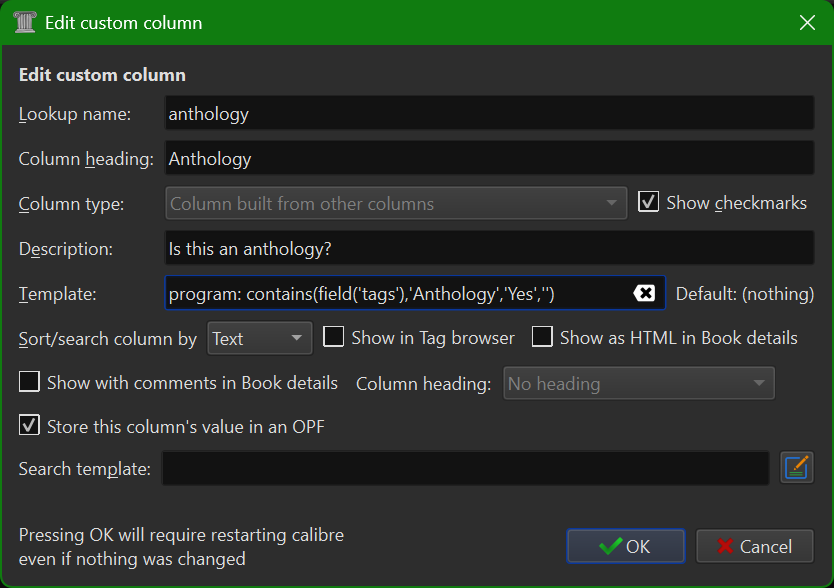
- Column – Fanfiction
- This column checks for three things – if an individual book has any entries in the Source Fandom field, if yes, then is the phrase “Original Work” present in that field, and if no, is the word “Fanfiction” present in the main tags field.
- The purpose of this is because I download a lot of Original Work off of Ao3, but I also keep regular books in Calibre as well and I wanted an easy way to filter between works I downloaded with FanFicFare that were actual fanfiction, works that were fannish original works, and books that came from a non-fandom background. So this column will have an X if the work is marked as Original Work in the column that will be set up to automatically include the fandom when the fic is downloaded, a checkmark if it either has something in that column that isn’t Original Work or if it has the word Fanfiction in the tags, and a blank space if none of those are true. If you don’t care about that distinction, you could set this column up the same way you set up the automatic column for Anthology above.
- Because this column has a more complex function, setting it up comes in two parts. First, you’ll set up the column like you did for the Anthology column and put the following code into the Template field, then you’ll proceed to the following section and set up the program that the template is calling.
program: IsFanfiction()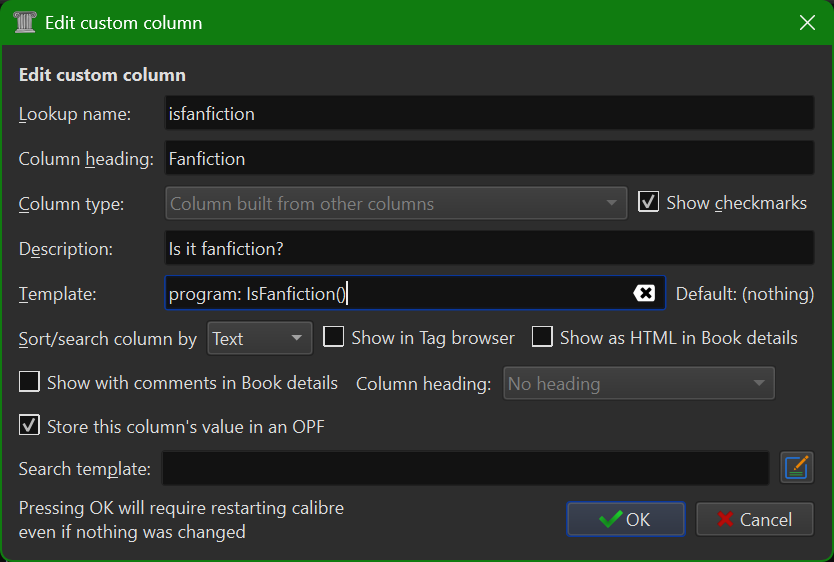
- Setting up the the IsFanfiction program:
- Go to Preferences > Template Functions and set up a new template like this:
- Type “IsFanfiction” into the blank field titled Template name to name your function.
- Copy/paste the following code into the box, press Create, then press Apply.
program:

if field('#sourcefandoms') then
	contains(field('#sourcefandoms'), 'Original Work', 'No', 'Yes')

else
	contains(field('tags'), 'Fanfiction', 'Yes', '')

fi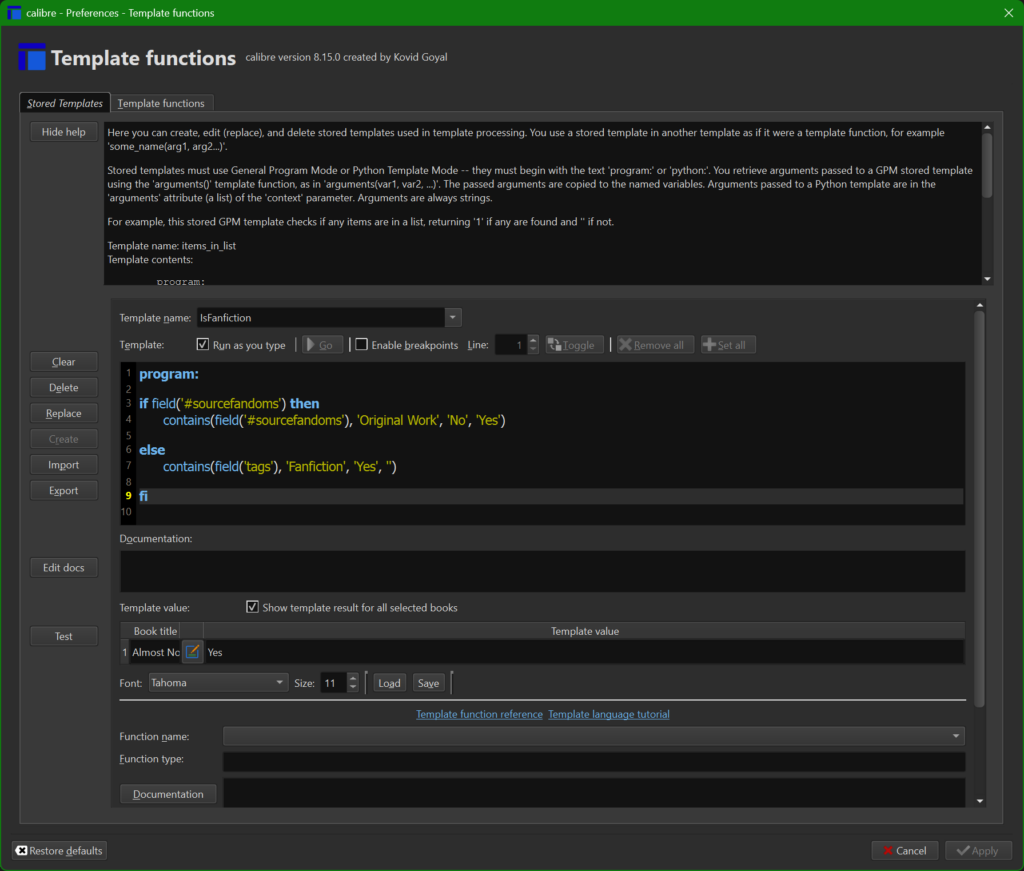
Setting Your FanFicFare Preferences
Now that your custom columns are set up, it’s time to turn to customizing the FanFicFare plugin.
Find the button on your menu bar for FanFicFare and click to open the menu. You’ll see an option near the bottom labeled “Configure FanFicFare”. Go ahead and click on that to pull up a popup window with a bunch of tabs. You’ll notice that the title of this popup window is Customize FanFicFare – no, I don’t know why it’s named differently in two different places, but both Configure FanFicFare and Customize FanFicFare are the same thing. I’m going to be dropping in screenshots of the tabs that I change things from the defaults on – unfortunately, I don’t remember all the changes I originally made, so unless/until I set this up for someone else on a fresh install and can record what specific things I’ve changed, you’ll just have to compare your popup window to my screenshots and the notes below.
Basic Tab
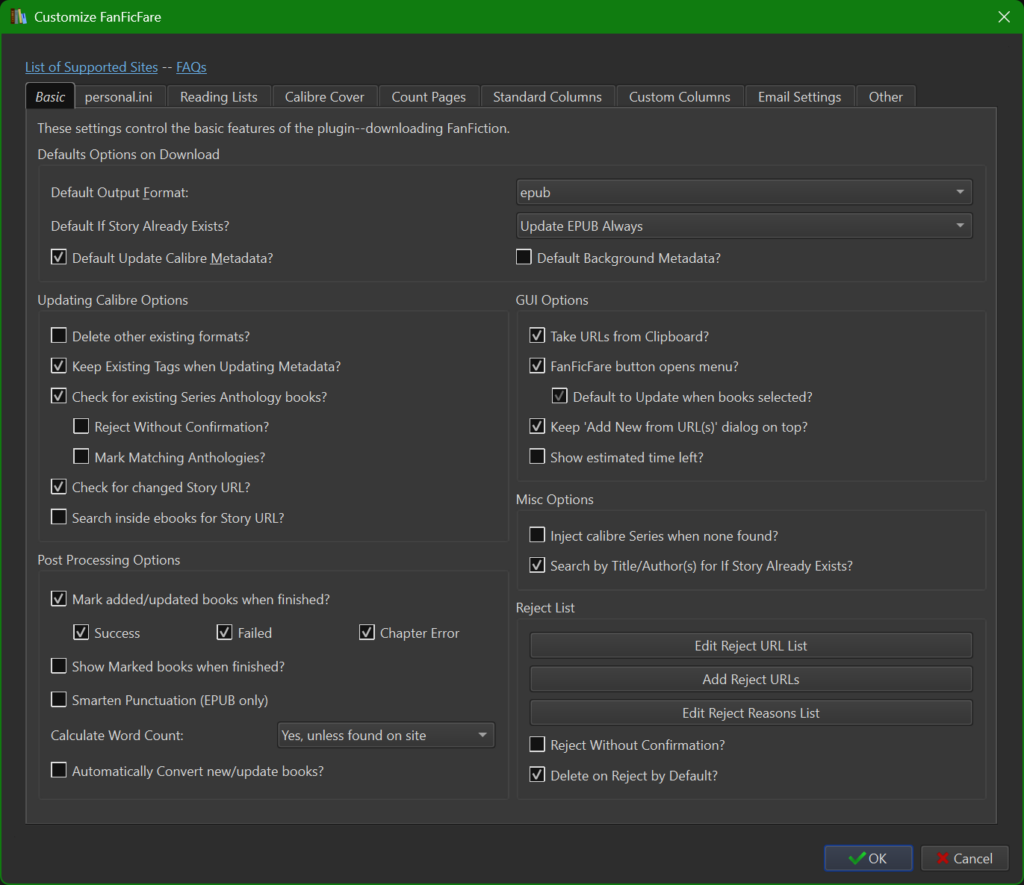
Of note for this section:
- The best default output format is epub. This is because the epub format is pretty much universal for every e-reading app or e-reader device, will display things like workskins better, is what FanFicFare is best designed for downloading as, and is what I walk you through some formatting things for in the below section. There’s very little reason to put this as any other output mechanism – Calibre has a good native conversion tool that you can use to output epubs as any other document type you want, if it becomes necessary.
- The second dropdown from the top, for “Default If Story Already Exists?”, is set as “Update Epub Always”. This means that FanFicFare will add new chapters, if it finds them, and update any metadata that is not set to only update on first download, but it won’t change anything about the chapters that are already downloaded. This is best for using once your library is set up properly and all the fics in it have been downloaded correctly, because it will keep FanFicFare from overwriting current chapters and causing issues like removed embedded pictures because of a broken link in an older chapter or overwriting chapters that the author has since deleted.
- If you are actively trying to overwrite a downloaded fic (if, for example, you previously downloaded it without the workskin and now want to re-download it with the workskin), you will want to change this dropdown to Overwrite Always. Change it here if you’re going to be re-downloading a lot of fics in a row, or change it on the confirmation box when you run FanFicFare if you only want it changed for one specific download job.
Count Pages Tab
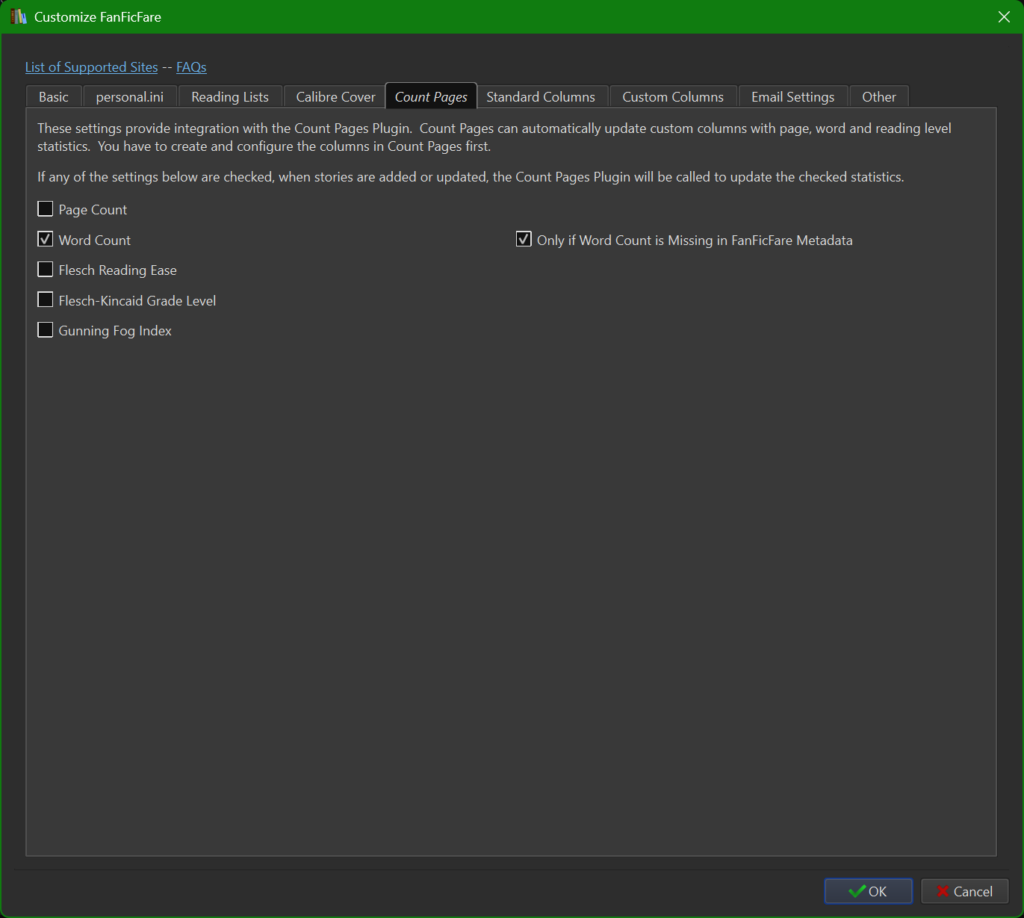
As the description in FanFicFare says, this setting is so that if FanFicFare downloads a story that does not have word count data available in a format FanFicFare can use it will automatically call the CountPages plugin to make a word count of the downloaded work. The second checkbox will ensure that the work uses the same word count that is listed on the story online, if it’s available, which is a good setting to check because CountPages includes the words in tags and other data, as opposed to just the words in the story.
Standard Columns Tab
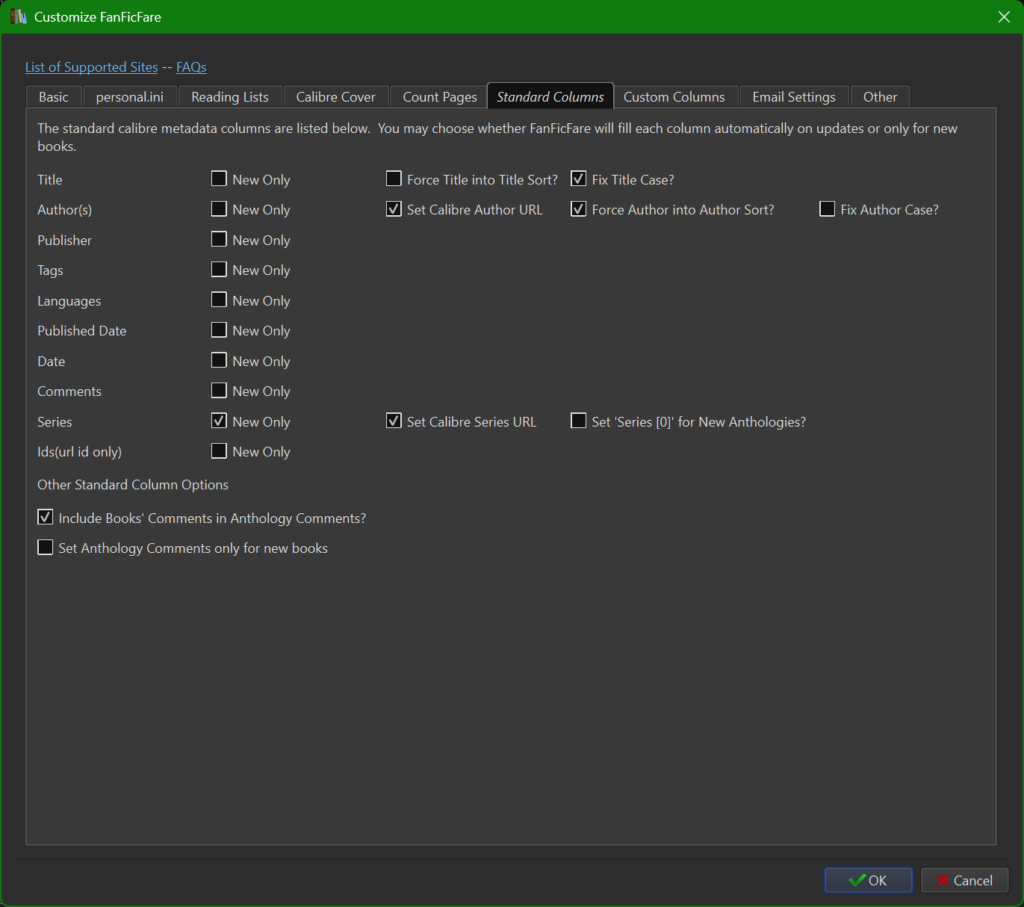
This is mostly personal preference, but the important one to make sure you check is the “Include Books’ Comments in Anthology Comments?” box. For Calibre, the comments box is where the summary of the fic goes, so if you don’t check this box then when you make an anthology it won’t record the summaries of all the stories that are collated together, you’ll just have a list of fic titles, which is not terribly useful.
Custom Columns Tab
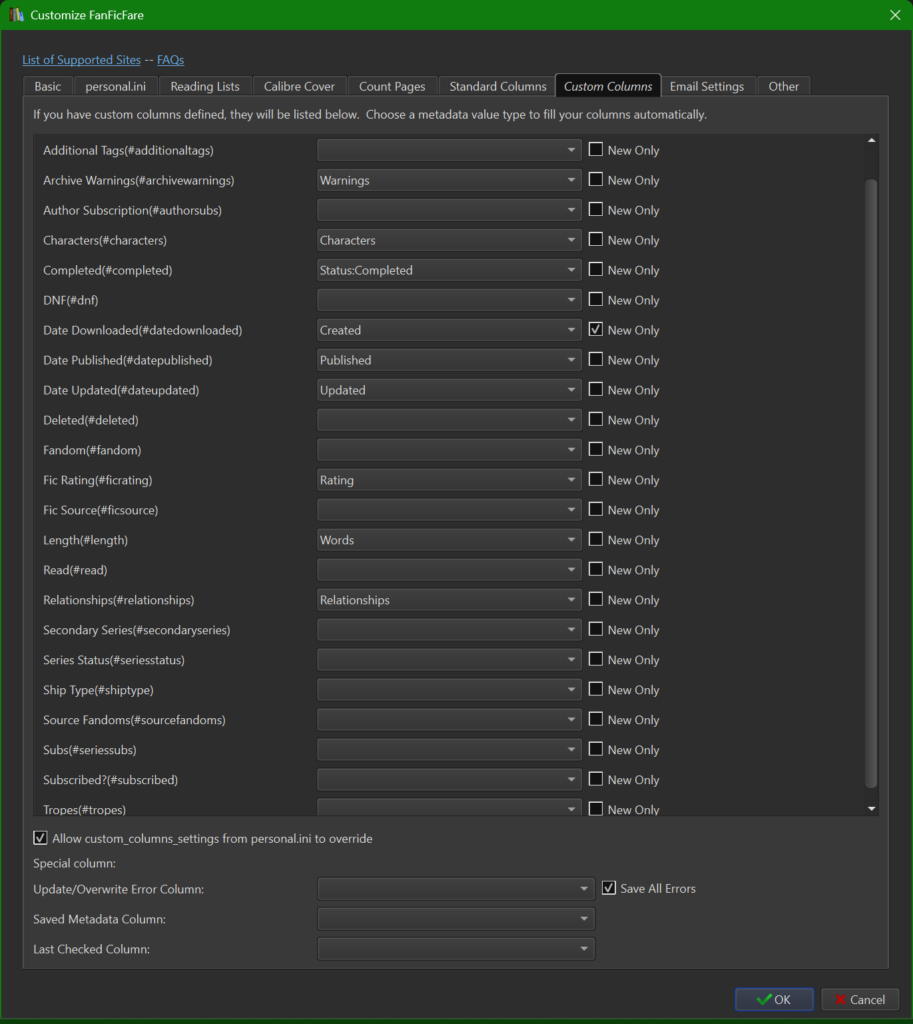
This tab is the easy way to map certain categories of information that FanFicFare automatically captures into your custom columns. It won’t map directly for everything, but it makes it easier overall to set these up like this.
It’s very important that the checkbox on the bottom, “Allow custom_columns_settings from personal.ini to override”, is checked, or you may find yourself frustrated later on when editing your personal.ini, which is what comes next and what gives FanFicFare so much flexibility of use.
Yours may not look exactly like my screenshot – it depends on what custom columns you’ve built and what you called them, but it should look relatively similar.
For accessibility, the list of things you should be assigning is as follows:
- Archive Warnings –> Warnings
- Characters –> Characters
- Completed –> Status:Completed
- Date Downloaded –> Created (CHECK THE NEW ONLY BOX)
- Date Published –> Published
- Date Updated –> Updated
- Fic Rating –> Rating
- Length –> Words
- Relationships –> Relationships
Setting Up Your Personal.ini
Alright, now for the fun part! For FanFicFare, your personal.ini is basically what gives you the ability to customize your downloads and really tweak things to your preference. There’s a lot of things people do, and you can absolutely search around to find ways to do stuff I’m not going to tell you how to do because I don’t do it myself, but it can be a little confusing to get into if you’re not used to doing any kind of basic coding so if you’re intimidated by the stuff that is out there then just stick with this stuff for now. You can always ask for help on r/Calibre if you’ve got a specific question that you can’t figure out from reading the MobileReads forum threads or the GitHub FAQ – a fair amount of what I’m using here is stuff I got help with on Reddit.
To start, I’m going to assume that you don’t have a clue what you’re looking at, because I want this guide to be accessible to people who have never had to do anything involving coding. If you already know something, cool, if you don’t, hopefully you’ll learn something useful for other applications too!
Personal.ini – Defaults Section
![Screenshot of the [defaults] section of my personal.ini](https://maelstrom.quest/wp-content/uploads/2026/02/Screenshot-2026-02-22-152348-1024x743.png)
First, read through the sections at the top of your personal.ini that start with the double hashtags (##). Those lines are “commented out”, which means they are there to give the user information about what’s going on with the code but will be ignored by the program. Comments are excellent and, in my opinion, should be used extensively so that when you look back on your code later you’ll have a quick overview of what each section does and won’t have to puzzle through it trying to remember.
The code I have in my [defaults] section is as follows:
[defaults]
## [defaults] section applies to all formats and sites but may be
## overridden at several levels. See
## https://github.com/JimmXinu/FanFicFare/wiki/INI-File for more
## details

##Browser cache path for sourcing fics from the cache
browser_cache_path:C:\Users\rover\AppData\Local\Mozilla\Firefox\Profiles\mocjnnpe.default-release\cache2

## Some sites also require the user to confirm they are adult for
## adult content.  Uncomment by removing '#' in front of is_adult.
is_adult:true

##This is what metadata is put into the main tags category in Calibre on download or update,
##if FFF is configured to update tags every time. Will add missing tags if updating an existing
##story but will not overwrite/remove other tags on update if "Keep Existing Tags when Updating Metadata?"
##is checked on the Basic tab of the Customize FanFicFare menu.
include_subject_tags: status, extratags

##Sorts ships alphabetically, ie Quinlan Vos/Obi-Wan Kenobi will become Obi-Wan Kenobi/Quinlan Vos
sort_ships:true

##The keep_in_order operator means that when the title page is generated, the chosen metadata categories
##will show up on the title page in the order they're listed on the original website instead of alphabetized
keep_in_order_ships:true
keep_in_order_characters:true

##Labels are what this metadata type shows up as on the title page if generated
publisher_label:Source Website

## extra tags (comma separated) to include
extratags: Type.Fanfiction

## keeps embedded style (helps with things like making right/left align text conversations look correct on downloaded ebook)
add_to_keep_html_attrs:,style,align

##Includes workskin
use_workskin:true- Browser Cache Path
- This is for if you are having issues downloading a fic directly from the site and need to use the browser cache method. Last I checked, Fanfiction.net stories can only be downloaded from the browser cache and it’s a good backup for Ao3 whenever Ao3 raises the Coudflare protection level and FanFicFare gets blocked there as well. You can find your browser cache path by googling your specific default browser and operating system and following the instructions you find online for your specific setup.
- Adult Content
- This section lets FanFicFare download works marked as Adult without popping up a confirmation box every time you try.
- Include_Subject_Tags
- I use this section to control what goes into the main Tags column in Calibre. Status is the status of the fic and will be either Completed or In-Progress, and what extratags is defined below and expanded on in subsequent sections.
- Sort_Ships
- I have this section set up because, for example, while Ao3 will map the ships Obi-Wan Kenobi/Quinlan Vos and Quinlan Vos/Obi-Wan Kenobi to the same place, Calibre doesn’t know those are the same tag and will create two separate tags. This will sort every name in each individual ship in alphabetical order, so only one tag will be created per ship instead of two.
- Keep_In_Order
- This section effects how the title page of the downloaded fic looks. By default, FanFicFare lets all the data get alphabetized, and this makes the information less useful because, generally, authors list ships and character tags in order of importance, so alphabetizing them means you lose that information. We’ll talk more about this below, in the Ao3 section.
- Labels
- Labels are how various types of data are labeled on the title page of a downloaded fic. I prefer that the source website of a fic be labeled as that instead of as “Publisher” so I change it here.
- Extratags
- This makes the word “Fanfiction” show up in the main Tags column for all downloaded books, unless overwritten in a subsequent section.
- Keep HTML
- This specific snippet just makes embedded HTML download and integrate correctly
- Workskin
- This is one of the most important things to include – if you don’t, FanFicFare won’t include the workskin and it will break certain fics that rely heavily on workskins. This is also one of the best reasons to use FanFicFare rather than Ao3’s native download function – Ao3’s download function doesn’t include the workskin, which, as stated, totally breaks certain fics into unreadability.
Personal.ini – Epub Section
![Screenshot of the [epub] section of my personal.ini](https://maelstrom.quest/wp-content/uploads/2026/02/Screenshot-2026-02-22-153316.png)
The code I have in my [epub] section is as follows:
[epub]
## include images from img tags in the body and summary of stories.
## Images will be converted to jpg for size if possible.  Images work
## in epub format only.  To get mobi or other format with images,
## download as epub and use Calibre to convert.
include_images:true

## If not set, the summary will have all html stripped for safety.
## Both this and include_images must be true to get images in the
## summary.
keep_summary_html:true

## If set, the first image found will be made the cover image.  If
## keep_summary_html is true, any images in summary will be before any
## in chapters.
make_firstimage_cover:true

## Resize images down to width, height, preserving aspect ratio.
## Nook size, with margin.
#image_max_size: 580, 725

## Change image to grayscale, if graphics library allows, to save
## space.
#grayscale_images: false- Include Images
- This is important to make sure any embedded images will be included in the epub output from FanFicFare
- Keep Summary HTML
- This leaves any HTML in the summary in the downloaded fic. There is rarely HTML in summaries, but I keep this true for the small percentage of the time it is included.
- Cover Image
- I set this for true because I don’t choose to generate covers in a different way and I like the randomness that including the first image as a cover provides. This is entirely up to you and your taste in covers.
- Everything else
- I don’t edit the rest of the options because I don’t feel the need to, but depending on your preferences you may decide you’d like to do something different.
Personal.ini – Specific Website Sections
At this point, you’ll get to the point where there are a bunch of sections that start with the name of a fic website in brackets, that look like this: [www.twilighted.net] . There will be websites you don’t use – feel free to delete those or ignore them, either way works. If your copy of the personal.ini does not have a section for Ao3, just add in the following to create that section:
[archiveofourown.org]
#username:YourName
#password:yourpassword
You can put this anywhere after the end of the [epub] section as long as it’s before the section that starts with [overrides]. You can do the same for other websites you use, and I’ll show a section at the end of this with what I’ve set up for the other websites I occasionally download from.
Personal.ini – Ao3 Section
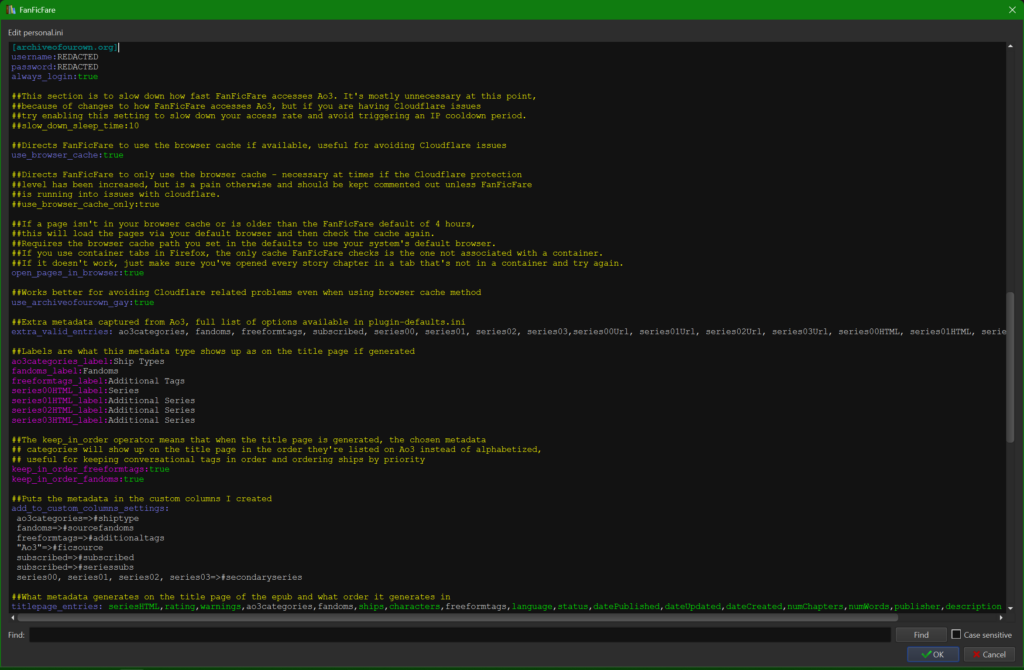
The code I have in my [archiveofourown.org] section is as follows:
[archiveofourown.org]
username:REDACTED
password:REDACTED
always_login:true

##This section is to slow down how fast FanFicFare accesses Ao3. It's mostly unnecessary at this point,
##because of changes to how FanFicFare accesses Ao3, but if you are having Cloudflare issues
##try enabling this setting to slow down your access rate and avoid triggering an IP cooldown period.
##slow_down_sleep_time:10

##Directs FanFicFare to use the browser cache if available, useful for avoiding Cloudflare issues
use_browser_cache:true

##Directs FanFicFare to only use the browser cache - necessary at times if the Cloudflare protection
##level has been increased, but is a pain otherwise and should be kept commented out unless FanFicFare
##is running into issues with cloudflare.
##use_browser_cache_only:true

##If a page isn't in your browser cache or is older than the FanFicFare default of 4 hours,
##this will load the pages via your default browser and then check the cache again.
##Requires the browser cache path you set in the defaults to use your system's default browser.
##If you use container tabs in Firefox, the only cache FanFicFare checks is the one not associated with a container.
##If it doesn't work, just make sure you've opened every story chapter in a tab that's not in a container and try again.
open_pages_in_browser:true

##Works better for avoiding Cloudflare related problems even when using browser cache method
use_archiveofourown_gay:true

##Extra metadata captured from Ao3, full list of options available in plugin-defaults.ini
extra_valid_entries: ao3categories, fandoms, freeformtags, subscribed, series00, series01, series02, series03,series00Url, series01Url, series02Url, series03Url, series00HTML, series01HTML, series02HTML, series03HTML

##Labels are what this metadata type shows up as on the title page if generated
ao3categories_label:Ship Types
fandoms_label:Fandoms
freeformtags_label:Additional Tags
series00HTML_label:Series
series01HTML_label:Additional Series
series02HTML_label:Additional Series
series03HTML_label:Additional Series

##The keep_in_order operator means that when the title page is generated, the chosen metadata
## categories will show up on the title page in the order they're listed on Ao3 instead of alphabetized,
## useful for keeping conversational tags in order and ordering ships by priority
keep_in_order_freeformtags:true
keep_in_order_fandoms:true

##Puts the metadata in the custom columns I created
add_to_custom_columns_settings:
 ao3categories=>#shiptype
 fandoms=>#sourcefandoms
 freeformtags=>#additionaltags
 "Ao3"=>#ficsource
 subscribed=>#subscribed
 subscribed=>#seriessubs
 series00, series01, series02, series03=>#secondaryseries

##What metadata generates on the title page of the epub and what order it generates in
titlepage_entries: seriesHTML,rating,warnings,ao3categories,fandoms,ships,characters,freeformtags,language,status,datePublished,dateUpdated,dateCreated,numChapters,numWords,publisher,description
This section will be broken down into headings for ease of navigation, because this is the sort of thing you’ll need to use for any specific source website that you want to extensively modify how FanFicFare downloads things, not just Ao3. Most of my explanations will be echoing the notes in the commented out lines in the code, but I’ve found that leaving in the explanations is helpful to me when I return to my code to make changes months later, so I don’t have to remember what every piece of code does after not looking at it for a long time.
Username and Password
This section is to store a username and password that FanFicFare can use to log into the website the section is for. This is important for Ao3 because you cannot download archive locked fics without logging in. If you are uncomfortable keeping your username and password plaintext in this document you can use a secondary Ao3 account instead of your main one or be prepared to manually log in every time you want to download an archive locked fic.
You don’t have to enable the always_login option, but if you don’t then when you download a fic that isn’t archive locked but is either inspired by or inspired an archive locked fic, the link to that locked fic in the epub will be replaced with a text indicating that you must log in to see it. As well, there are some options for FanFicFare to download information regarding whether you have subscribed to a specific story, what your bookmark notes are, and other such information and you will need to log in always in order for FanFicFare access that information.
Slow Down Sleep Time
This section is mostly unnecessary at this point, because of changes to how Ao3 and FanFicFare talk to each other, so I leave it commented out, but it has been useful in the past and may be useful again so I haven’t removed it. What it does is slow down the rate at which FanFicFare talks to Ao3’s website, because if FanFicFare talks to Ao3 too quickly sometimes Cloudflare will identify it as a DDOS attempt and block your IP address for a cooldown period, and then you can’t access Ao3 at all for a period of time. This fixes that issue.
Browser Cache Settings
This section directs Ao3 to check your browser cache (which you included in the [defaults] section above) for stories before querying Ao3. This is very useful to avoid Cloudflare issues and is required for the times that Ao3 raises the Cloudflare protection level in response to DDOS attacks and other major bot issues. Generally, I leave this enabled all the time.
The option to only use the browser cache is something I avoid leaving enabled unless FanFicFare isn’t working the regular way due to a Cloudflare protection level increase, as it means if all pages of the fic aren’t already in your cache and the next setting isn’t turned on, you won’t be able to download the fic, and if the next setting is turned on, FanFicFare will force open every page of every fic it’s downloading on the current job in your default browser, which effectively means several minutes of your browser just opening new tabs on top of everything else, which gets very annoying.
This section is ok to leave active all the time also, as it just tells FanFicFare to open a story in your default browser so it will appear in the cache if FanFicFare couldn’t download it normally and couldn’t find it in the cache. As long as the second section is disabled unless necessary, this won’t cause you issues to leave on all the time.
Archiveofourown.gay
Ao3 has a few mirror sites and ArchiveOfOurOwn.gay is one of them, with the advantage of allowing you to log in and access archive locked fics. During the issues Ao3 was experiencing in early 2025, it became much easier to use the .gay mirror than the regular .org site, and as far as I’m aware, that is still true.
Extra Valid Entries
Extra valid entries are additional metadata that FanFicFare can gather from some websites but, by default, either won’t gather or will combine with another type of metadata. You can see the options in the plugin-defaults.ini, which is located in the personal.ini tab of the Customize FanFicFare popup window, and choose which ones you want to use from there. This set is what I collect, but there are a variety of options available to you – just open plugin-defaults.ini and search for “archiveof” and it should scroll you right on down to the section that shows you what your options are. Pick out the ones you want, include them in this section in your personal.ini, and don’t forget to map them to your custom columns as explained below in the Add To Custom Columns section. You can also change their labels if you don’t like the default labels and add them to your title page if you’d like, all of which will also be explained below.
Labels
We already talked about labels in the [defaults] section, but this is a good example of how you can use the same things in different sections to affect different things. The labels here in the Ao3 section will only apply to information on fics pulled from Ao3. Of note, if you look in the defaults, the fandoms label is Fandoms, but previously FanFicFare printed it as Categories by default. This section definitely has the potential to be redundant with the defaults, but I haven’t deleted anything because it doesn’t hurt anything to have it there either. You should figure out how you want your title page entries to be labeled and fill your version of this out accordingly.
Keep in Order
We’ve also already talked about this above, because of the defaults to keep ships and characters in order. For Ao3, we’re adding two more things to keep in order – fandoms and additional tags. For fandoms, it’s not necessarily the most important, but I include it because I might as well get the information about fandom importance exactly as the author intended it. For additional tags, it’s vital – every time an author tags things with tags that are designed to be read in order, if FanFicFare is allowed to alphabetize them you get messy chaos. I previously had screenshots showcasing the before and after, but I have now updated everything in my library that can be updated so new screenshots will have to wait until I can use a non-modified FanFicFare to download something according to defaults to show the difference.
Add To Custom Columns
Alright, this is where we really get back to those custom columns I had you set up earlier. Remember how you mapped some things to custom columns in the Customize FanFicFare screen, several sections up? Now you’re going to map the rest of the things that can’t be done through that window. You’ll notice that most of these are just taking extra valid entries we defined above and mapping them straight to a column, but one of them is mapping the text “Ao3” to the Fic Source column. You can use this to drop types of data, like the extra valid entries, and also strings (string = a word or phrase) into any column that can contain the type of data (so you can put words into a column type that can hold words, but not a column type that can only hold numbers, for example). Below, you’ll see that every section I have for websites I download from has an entry here to put a string with the name of the website into the Fic Source column so it’s easy to see where each fic came from.
Titlepage Entries
This is the key to making a readable title page. Each category will generate in the order it’s listed here. When I get the comparison screenshots for the Keep in Order section up, you’ll be able to see how this section affects the way your title page appears. If you’ve already downloaded fics and just want to refresh the title page, you can just use the Update Epub Always option in the dropdown for what to do if the book already exists – I mention this up in the Basic Tab subsection of the Setting Your FanFicFare Preferences above.
Replace Metadata
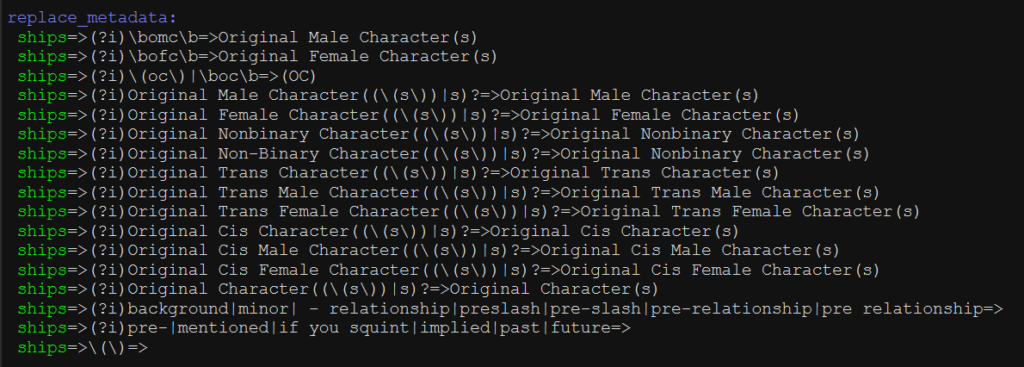
This section can be put either in your [defaults] section or your specific websites sections ([archiveofourown.org], [fanfiction.net], et cetera) and it will apply like anything else in that section. You’ll notice that this screenshot isn’t a full window like the others – I keep this one in my [defaults] section, but you should put yours wherever makes sense for what you want. The code I have in this section is as follows:
replace_metadata:
 ships=>(?i)\bomc\b=>Original Male Character(s)
 ships=>(?i)\bofc\b=>Original Female Character(s)
 ships=>(?i)\(oc\)|\boc\b=>(OC)
 ships=>(?i)Original Male Character((\(s\))|s)?=>Original Male Character(s)
 ships=>(?i)Original Female Character((\(s\))|s)?=>Original Female Character(s)
 ships=>(?i)Original Nonbinary Character((\(s\))|s)?=>Original Nonbinary Character(s)
 ships=>(?i)Original Non-Binary Character((\(s\))|s)?=>Original Nonbinary Character(s)
 ships=>(?i)Original Trans Character((\(s\))|s)?=>Original Trans Character(s)
 ships=>(?i)Original Trans Male Character((\(s\))|s)?=>Original Trans Male Character(s)
 ships=>(?i)Original Trans Female Character((\(s\))|s)?=>Original Trans Female Character(s)
 ships=>(?i)Original Cis Character((\(s\))|s)?=>Original Cis Character(s)
 ships=>(?i)Original Cis Male Character((\(s\))|s)?=>Original Cis Male Character(s)
 ships=>(?i)Original Cis Female Character((\(s\))|s)?=>Original Cis Female Character(s)
 ships=>(?i)Original Character((\(s\))|s)?=>Original Character(s)
 ships=>(?i)background|minor| - relationship|preslash|pre-slash|pre-relationship|pre relationship=>
 ships=>(?i)pre-|mentioned|if you squint|implied|past|future=>
 ships=>\(\)=>
Alright, this is the part that took me the longest to figure out and is definitely the most confusing for people who don’t know Python, AND it’s also the part where personal preference is going to come in the strongest. Basically, what this does is it edits the tags that FanFicFare is going to put into your metadata, and only you can know how you want that to happen. This is all using regular expressions and it’s, as you can see, kind of a tedious process because you have to write stuff for every little thing you want changed. I recommend r/learnpython if you need help formatting your regular expressions and the Calibre manual for figuring out how to format the entire thing, or the MobileReads forum for stuff other people have done with this option.
What I’ve mostly used this for is to normalize all the various ways that people use OCs in their ships all into one basic format – I didn’t like having a bunch of tags that boiled down to Canon Character/OC when the only difference was whether the author had used OC, Original Character, or Original Character(s), so this part just makes all the variations show up as one single thing.
Near the end, you’ll see two lines to remove the various add-ons that ship tags get – I want the ship tags to just have the names, I can figure out the context from looking at the fic, so these lines strip those out. I might add more options to this if I run across more things I want removed, but this works for now.
The last line removes any instances of () because, after stripping out the various ship add-ons, sometimes you’re left with empty parentheses and it was easier to just give a line to pull those out rather than integrate that into the previous lines.
Personal.ini – Other Website Sections
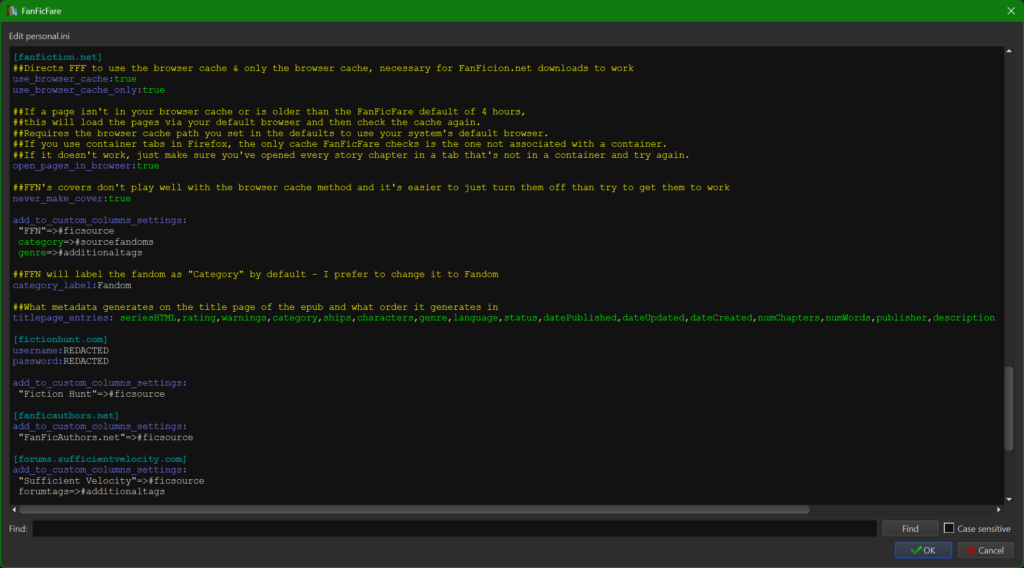
This section is what I have included for other websites. They’re just as customizable as the Ao3 section is, but since I so rarely download fics from other websites I haven’t bothered getting fancy with them. The code I have here is as follows:
[fanfiction.net]
##Directs FFF to use the browser cache & only the browser cache, necessary for FanFicion.net downloads to work
use_browser_cache:true
use_browser_cache_only:true

##If a page isn't in your browser cache or is older than the FanFicFare default of 4 hours,
##this will load the pages via your default browser and then check the cache again.
##Requires the browser cache path you set in the defaults to use your system's default browser.
##If you use container tabs in Firefox, the only cache FanFicFare checks is the one not associated with a container.
##If it doesn't work, just make sure you've opened every story chapter in a tab that's not in a container and try again.
open_pages_in_browser:true

##FFN's covers don't play well with the browser cache method and it's easier to just turn them off than try to get them to work
never_make_cover:true

add_to_custom_columns_settings:
 "FFN"=>#ficsource
 category=>#sourcefandoms
 genre=>#additionaltags

##FFN will label the fandom as "Category" by default - I prefer to change it to Fandom
category_label:Fandom

##What metadata generates on the title page of the epub and what order it generates in
titlepage_entries: seriesHTML,rating,warnings,category,ships,characters,genre,language,status,datePublished,dateUpdated,dateCreated,numChapters,numWords,publisher,description

[fictionhunt.com]
username:REDACTED
password:REDACTED

add_to_custom_columns_settings:
 "Fiction Hunt"=>#ficsource

[fanficauthors.net]
add_to_custom_columns_settings:
 "FanFicAuthors.net"=>#ficsource

[forums.sufficientvelocity.com]
add_to_custom_columns_settings:
 "Sufficient Velocity"=>#ficsource
 forumtags=>#additionaltags
As you can see, aside from a couple of tweaks to make Fanfiction.net downloads work smoother, the majority of what I use this section for is to automatically add to the Fic Source column. There are definitely other things you can do with these sections, and you should check out their sections in plugin-defaults.ini (available through the personal.ini tab of the Customize FanFicFare) window to see what your options are if you use a site other than Ao3 enough that you want to set up extensive customization for it.
Tweaks in this section:
- Fanfiction.net
- All three browser cache options – Fanfiction.net does not, as far as I can tell, allow downloads at all unless you use the browser cache method
- Disabling automatic covers – Fanfiction.net stores fic covers in a weird way that doesn’t really work well with the browser cache method and, in my opinion, it’s better to disable automatically attempting to retrieve them. You can manually make covers, Calibre has a native cover generator option, or there are a number of cover making plugins you can use if you want something more automatic
- Mapping your custom columns, like you did above
- Changing the categories label into fandoms
- Customizing the title page layout – this is almost the same as the Ao3 layout, but tweaked a little bit because Fanfiction.net uses category instead of fandom and genre instead of additional tags
- Sufficient Velocity (should work the same for similar forums like Space Battles)
- You can map forum tags to your additional tags column
- Everything else
- I mostly use these sections to automatically map the fic source column for anything I’ve downloaded from even once, because it’s faster to set it and forget it than have to manually update that column every time I decide to download a single thing from another website
Personal.ini – Overrides Section
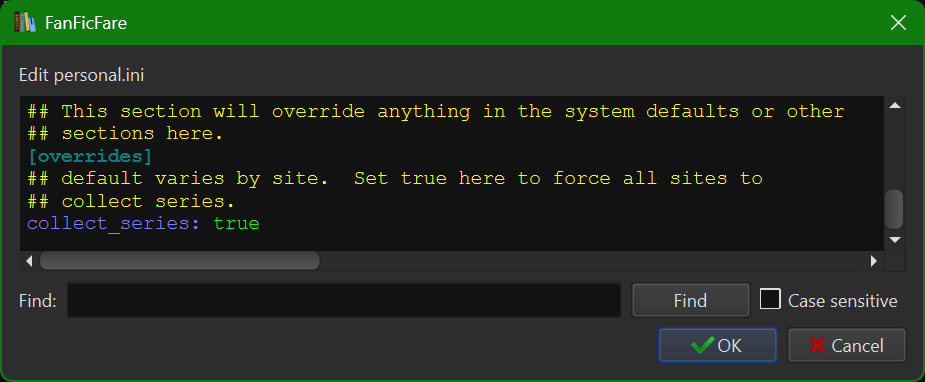
This section, as it implies, will override anything in the previous sections and anything in plugin-defaults.ini. I basically leave this section alone, aside from keeping the collect_series: true enabled, because I don’t need to override anything and it has the potential to negate things that are set up earlier in your personal.ini
Putting It All Together
At this point, you’re done with your setup! All that remains is to start downloading your stories! I advise you to start with one or two stories first, just as an error test so you can fix anything wrong before you’ve downloaded a bunch of things incorrectly, but once you’ve checked that everything is good to go you can have at your backlog of things.
FanFicFare can handle a lot of downloads in one go, but it’s going to depend on a few factors, including your computer, your internet connection, and how spicy Cloudflare happens to be feeling that day. I usually go for between 20 and 50 fics at a time, if I’m downloading individual fics, because I prefer to break the jobs up into manageable chunks so if something happens and my connection is lost I don’t lose a ton of time and fics like I would have if I’d set it to download several hundred at once.
To download, you’ve got a few options, including:
- Download from URLs
- This is the most basic option. Copy/paste the URLs into the popup window, one URL per line, only URLs for stories (as opposed to series or other such things), and let it run.
- Get Story URLs from Web Page
- This is very useful if you’re trying to back up every fic that an author has written, or all your bookmarks, or other groups of fics that you can easily have displayed on a single linkable webpage. You can choose to download them as individual stories or have FanFicFare automatically bundle them together into an anthology ebook.
- Anthology Options –> Make Anthology Epub from Web Page
- You can drop a link here for a series on Ao3 or for just any page with a bunch of story links on it and FanFicFare will bundle them together in an anthology, and set the update path to the URL you used so if the series is updated you don’t have to re-download it to add new stories. I’m not sure how it handles titles for other sites, but for Ao3 it will pull the series title and make that the Epub name, as opposed to using the name of the first story on the list, which is what happens if you make an anthology from a bunch of individual stories. This is the one place I’ll make an exception and download more than 50 fics at a time – there are a couple of series I very much enjoy that have 100+ individual works in them, and this handles downloading them quite well.
- Update Existing FanFiction Books
- This lets you select books you’ve downloaded via FanFicFare and run it and FanFicFare will search for updates and update new chapters and new metadata without you having to plug in the URL again. Its great for being able to quickly and easily just update your downloaded copy of WIPs every time a new chapter comes out, and I think there’s a way to do some kind of automatic hook to an email address that gets Ao3 notifications so you can run automatic updates, but I haven’t set that up so you should head over to the MobileRead forum thread I link below for more information on how that even works.
- Anthology Options –> Update Anthology Epub
- This is the same as the above option except for only applying to anthologies, as the previous option only works on single URLs.
Resources & Credits
Here’s a list of resources I used when learning all this stuff, some of which I’ve referenced above. If you’ve got further questions these are good places to look for answers! Also, specific helpful information that’s been added in from the comments will be credited at the end of this section.
The Calibre Manual – https://manual.calibre-ebook.com/index.html
Very useful, if somewhat dense and sometimes assumes you have a better grounding in Python or other things than you may have, but mostly a really great resource.
MobileRead Forum Thread for FanFicFare – https://www.mobileread.com/forums/showthread.php?t=259221
This thread is incredibly long and effectively the official forum for FanFicFare. The developer for FanFicFare is active on the thread and if you get an error message or are trying to do something that you think should work but just isn’t, this is the place to ask. It’s kind of hard to search, but there is some great information buried in the older posts that’s worth making the effort for.
FanFicFare GitHub Wiki – https://github.com/JimmXinu/FanFicFare/wiki
Also very useful, sometimes doesn’t explain things enough but will get you started and point you in the direction to ask specific questions so you’re more likely to get specific answers.
FanFicFare GitHub Wiki Replace Metadata Section – https://github.com/JimmXinu/FanFicFare/wiki/ReplaceMetadata
Gets a separate line because this part is complicated. This section doesn’t really explain the python parts well, but it’s super useful if you want to do the same things the examples show or if you’re going to be asking someone who does know python how to format things because they’ll understand what’s going on much better with this context.
Regex 101 – https://regex101.com/
Useful site for testing if your regular expressions for the replace metadata section actually will work.
r/Calibre – https://www.reddit.com/r/Calibre/
Subreddit for everything Calibre related. I’ve gotten generally good advice for how to do things in Calibre here and never gotten pushback for using FanFicFare, so if you’ve got questions about how to make Calibre do something it’s a good place to search and then to ask if you can’t find a previous thread with your problem.
r/learnpython – https://www.reddit.com/r/learnpython/
If you’re having issues with putting together programs within Calibre or need more help on your regular expressions for the Replace Metadata section, this is the place to go. Read the rules and be thorough in your post for the best chances to get a helpful answer.
MobileRead Forum Thread On Metadata Management – https://www.mobileread.com/forums/showthread.php?t=352403
This gets very specific about some stuff I haven’t bothered to do and also is the source for some of the things I showed you above. Also, it was still active as of late 2025, so it’s worth asking questions if you’re really stuck.
Bonus Section: Alternate Method for Keeping Creators Styles in Downloaded Fics – https://www.youtube.com/watch?v=JcV5TahaP6s
If for whatever reason you have an issue with including the creator styles/workskins in your download, this video walks you through how to manually insert them into the downloaded epub. Shouldn’t be necessary if you use the use_workskin:true line, but it’s here if you have difficulties.
NewGreyWolf – provided information on recording dates and tweaking the entries for forums (Sufficient Velocity, for example) and Fanfiction.net sections.
You’re an absolute angel, thank you so much for taking the time to put together this guide <3
As someone who isn't particularly good with technology, this was really easy to follow!
Thanks for the feedback! I was definitely going for broadest accessibility for it so I’m glad it seems to be hitting that mark!
Gem of a guide with easy-to-follow instructions! Thank you for allowing someone(me lol) who’s completely new to Calibre and FanFicFare to set it up without too much hassle. This seems far more efficient in cataloging fics than manually editing a spreadsheet.
Thank you! I’m really glad to hear it was easy to follow and helped you out! ^.^
An excellent guide! this has helped tame the mess that my fanfiction archive has gotten into over the past decade and impose some order on the tag spam
I would recommend adding a raw metadata column to allow for regenerating the metadata in calibre without having to redownload the fics, this also reduces teh amount of pain when a fic is deleted and you need to regenerate its calibre metadata.
I’m glad it helped! 😀
I’m interested in what you mean exactly by a raw metadata column – what column type would you make it? Pure text? Comma separated text? Something else? I’m also not sure exactly how dumping everything into a raw column would be useful, but I’m probably not considered something but I can’t figure out what that is. Definitely would love to hear back in greater detail though!